Hey everyone, it’s Mia from your go-to smart lock supplier, and today I’m walking you through the actual, no-BS process of programming a smart lock. If you’ve ever stared at your new smart lock box thinking “wait, how do I not mess this up?”, you’re in the right place. I’ve worked with so many folks—homeowners, small business owners, even some handymen—who overcomplicate this, but it’s way simpler than you think. Let’s break it down step by step, with real, tested tips I’ve picked up over years in this space. Smart Lock
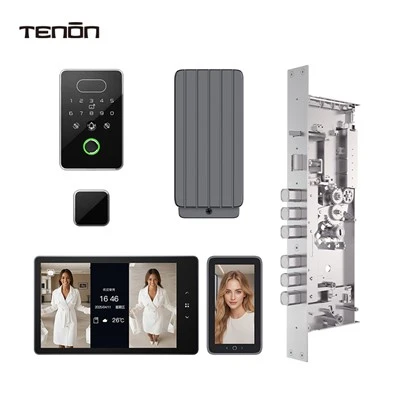
First, a quick reality check: programming a smart lock isn’t rocket science, but skipping a tiny step here can lead to headaches later (like not being able to get into your own place, oops). I’ve heard horror stories of people who rushed the initial setup and ended up calling me panicking at 2 a.m. So take it slow. Let’s start with the basics: what you’ll actually need to have on hand before you even pull the lock out of the box.
First, your phone. Almost all modern smart locks connect via Bluetooth or Wi-Fi, so make sure your phone is charged (no dead batteries mid-setup—been there, done that) and has the latest version of your lock’s app. Pro tip: I always tell people to download the app before opening the lock package. Why? A lot of apps push updates, and if you wait until you’re holding the hardware, you might get stuck with an outdated version that doesn’t work with your lock. Next, make sure your lock is compatible with your phone—most work with iOS 13+ and Android 9+, but if you have an older device, shoot me a message and I’ll hook you up with a quick check. Also, grab a small Phillips head screwdriver (most locks come with one, but if you lost yours, any standard size works) and maybe a friend to help hold the door steady if you’re replacing an old lock. No need for fancy tools here.
Now, the fun part: prepping your existing lock. Wait—hold on, before you start pulling screws: do NOT skip this. If you’re replacing an old deadbolt, first turn off the power to any exterior lights or doorbell that’s wired to the area (just in case, no one wants a shock). Then, remove the old lock. Take a picture of how it’s mounted on both sides—front and back. I can’t stress this enough. Last month, a customer sent me a blurry photo of her old deadbolt and messed up the new lock’s alignment, costing her an extra trip to get it right. Snap a pic, label the screws if you have different sizes (some locks use different lengths for the interior vs exterior plate), and set the old hardware aside so you don’t lose it. It’s way easier than guessing later.
Okay, time to install the new lock hardware. Let’s split this into exterior and interior, because that’s how most locks work. First, put the exterior (the part with the keypad or touchscreen) on the outside of your door. Align it with the old deadbolt hole—you want the bolt to slide smoothly into the slot, no forcing it. Once it’s lined up, screw it in tight, but not so tight that you strip the screw (again, small screwdriver = gentle turns). Next, the interior side: this has the locking mechanism, usually with a battery compartment. Now, here’s the key step most people miss: the spindle. The spindle is the little metal rod that connects the exterior keypad to the interior locking knob. Make sure it’s centered properly. If it’s off, your lock will either stick or not lock at all. Slide the interior plate on, screw it in, and test turning the interior knob a few times to make sure it moves freely. If it gets stuck, loosen the screws a tiny bit and adjust the alignment—no shame in tweaking.
Now, the actual programming part. This is where the app comes in. Open the app you downloaded earlier, create an account (use a real email, not a fake one—you’ll need it if you ever need to reset the lock), then hit “Add Device”. The app will scan for nearby locks via Bluetooth—make sure your lock is in pairing mode. How do you put it in pairing mode? Every lock is a little different, but most have a button on the back of the interior plate that you hold for 5-10 seconds until the keypad flashes blue or a voice says “Pairing mode enabled”. If you can’t figure it out, check the little instruction sheet (I know, who reads those? Guilty too, but they work) or shoot me a quick question.
Once your app finds the lock, select it, and follow the on-screen prompts to name it. Something like “Front Door” is better than “Random Lock 1” for when you have multiple smart locks later. Then, you’ll connect it to Wi-Fi if your lock supports it. This is important if you want to control the lock from your phone when you’re not home, or get alerts when someone locks/unlocks it. If your lock only uses Bluetooth, you’re good to go for local control, but Wi-Fi is a game-changer for remote access. Just make sure your Wi-Fi is 2.4GHz—most smart locks don’t work on 5GHz, so if you have a dual-band router, pick the 2.4GHz network. If you’re confused about how to switch that, I can walk you through it.
Now, the next big step: setting up access codes. This is probably why you got a smart lock in the first place—no more hiding keys under the doormat. The app will let you create permanent codes (for family, roommates, your dog walker), temporary codes (for a cleaner who only comes once a month), and even one-time codes (for a delivery person). When you create a code, name it too—“Jane’s Guest Code” vs “Random Code” means you can delete it later when they leave, no guesswork. Pro tip: don’t use super obvious codes like 1234 or 0000. I recommend mixing numbers, maybe adding a couple of extra digits to make it harder to hack. Also, most locks let you set up fingerprint access too, if they have a biometric keypad. Just scan your finger a few times, and it’ll save—same logic as access codes: test it a few times to make sure it works before you share it.
Wait, let’s talk about battery life. Smart locks run on AA or AAA batteries, right? Don’t use cheap generic batteries. I’ve had so many customers come back saying their lock died after a week because they used dollar store batteries. We always recommend name-brand alkaline batteries—they last 6-12 months, depending on how often you use the lock. And here’s a heads up: most locks will send your phone a push notification when the battery is low, so you have time to replace them before it dies. If it does die unexpectedly, most smart locks have a backup way to power it—like a USB port on the exterior keypad where you can plug in a portable battery to unlock it temporarily. No more being locked out because you forgot to change the batteries.
Now, troubleshooting the most common mistakes. Let’s be real, things go wrong sometimes. First, if the lock won’t connect to the app: check that Bluetooth is turned on, your phone isn’t connected to another device that’s causing interference, and you’re within 10 feet of the lock (Bluetooth range is limited). If it’s not locking/unlocking with the code: make sure the code you set in the app matches what you’re entering on the keypad (no typos!), or that you didn’t accidentally mark a temporary code as expired. If the app isn’t sending alerts: double-check that you enabled notifications in your phone settings and the lock app, and that your Wi-Fi is working.
One last thing: testing the lock before you put the old hardware away. Once you’re done programming, test every function: lock it from the app, unlock it with a code, test the fingerprint, make sure the Wi-Fi works if you set it up. Open and close the door a few times to make sure it doesn’t stick. I always tell people to wait 10 minutes after programming before putting the old lock in the trash—just in case you need to re-do something.
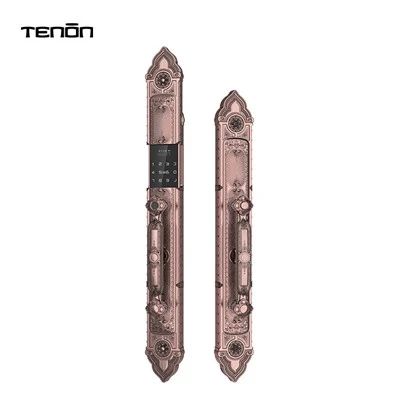
Look, I get it—programming a new gadget can feel overwhelming, especially if you’re not super tech-savvy. But the best part about smart locks is that they’re built for real people, not engineers. If you run into snags, don’t stress. For all you homeowners, small business owners, or anyone looking to upgrade their entry security, if you need help navigating programming, or want to pick out the right smart lock for your space, hit me up to discuss your needs. We offer flexible solutions for both residential and commercial use, so no matter if you’re outfitting your front door or a 10-unit apartment building, we’ve got you covered.
Fingerprint Door Lock References
- Consumer Technology Association. (2023). Smart Home Device Setup Best Practices for Residential Users.
- National Locksmith Association. (2022). Common Smart Lock Programming Errors and Mitigation Strategies.
- Bluetooth Special Interest Group. (2021). Bluetooth 5.0 for Smart Home Device Integration.
Guangdong Ap Tenon Sci. & Tech. Co., Ltd.
Guangdong Ap Tenon Sci. & Tech. Co., Ltd. is one of the most professional smart lock manufacturers and suppliers in China. With abundant experience, we warmly welcome you to wholesale advanced smart lock made in China here from our factory. Also, OEM service is available.
Address: No.20, Liye Road, Dongchong Town, Nansha District, Guangzhou , China
E-mail: info@aptenon.com
WebSite: https://www.tenondoorlock.com/
